Process · 6 min read
How do I download bank statements and daily activity readouts so Fannie Mae and Freddie Mac will accept them?
August 4, 2026 · Written by Bill Egan, NMLS 7342
Short answer
Log into the bank or investment site and download the official statement PDF from Statements or Documents — not a photo of your phone. If we also asked for a daily activity readout, print that the same way, with the URL showing. Fannie Mae allows computer-generated online statements if they identify the institution and the source of the information, such as an internet banner. A cropped screenshot usually does not. If you print a webpage, turn on headers and footers so the URL and date show. Send every page. Egan Financial Group LLC will tell you if a file will not pass underwriting.
01
Why this comes up
You sent what you thought was a statement and processing came back asking for a “real PDF.” The app screenshot looked obvious to you. Underwriting cannot use it. The file sits while you hunt through online banking, and the lock does not care that the bank’s website is confusing.
02
Where this goes wrong
A phone screenshot, a cropped balance, or a transactions list with no bank name gets rejected. Missing page 3 of 4 does too. Large deposits still need a paper trail even on a perfect PDF. Printing a webpage with headers turned off — no URL, no date — looks like a generic printout, and many underwriters will not take it. That is how a complete-looking file stalls two days before closing.
03
What we do about it
We tell you up front: official statements, all pages, from the institution. Fannie Mae’s selling guide allows statements downloaded from the internet when they clearly identify the bank and the source of the information, for example an internet or fax banner. We are not asking you to be a processor. We are asking for a document an investor can read. If what you send is a screenshot, we say so the same day instead of waiting for underwriting to bounce it. We do not need your password. We need the PDF.
04
How to get ready
On the bank site, go to Statements, Documents, or e-Statements. Download the monthly PDF for each account we listed — usually the most recent two months on a purchase. If we asked for a daily activity or transaction readout, open Activity, Transactions, or Download, set the date range we named, and print that to PDF the same way. Save the file. Do not photograph the screen. If the bank only offers a webpage, print to PDF with the URL showing.
Google Chrome
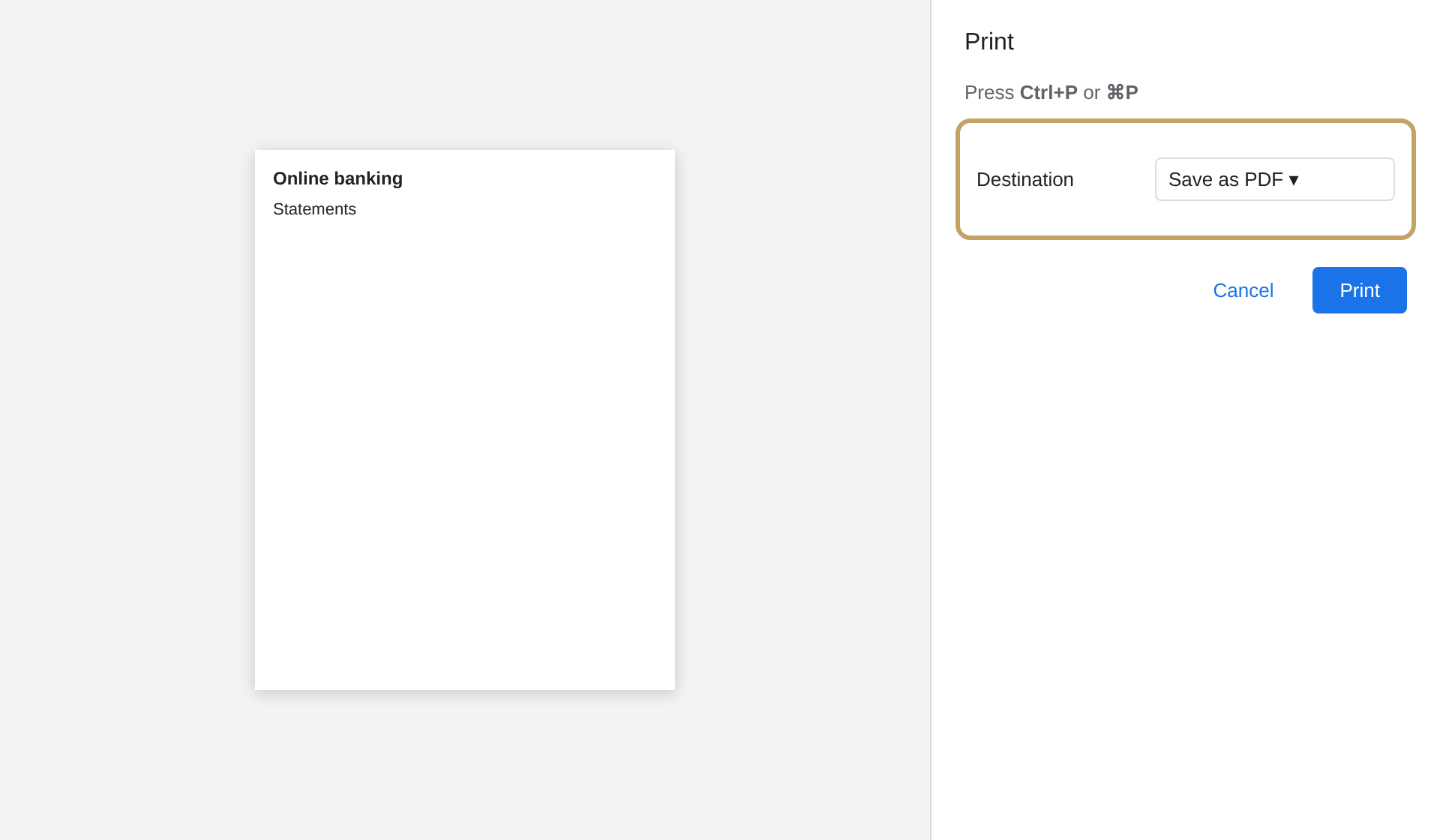
- Press Ctrl+P on Windows or Command+P on a Mac
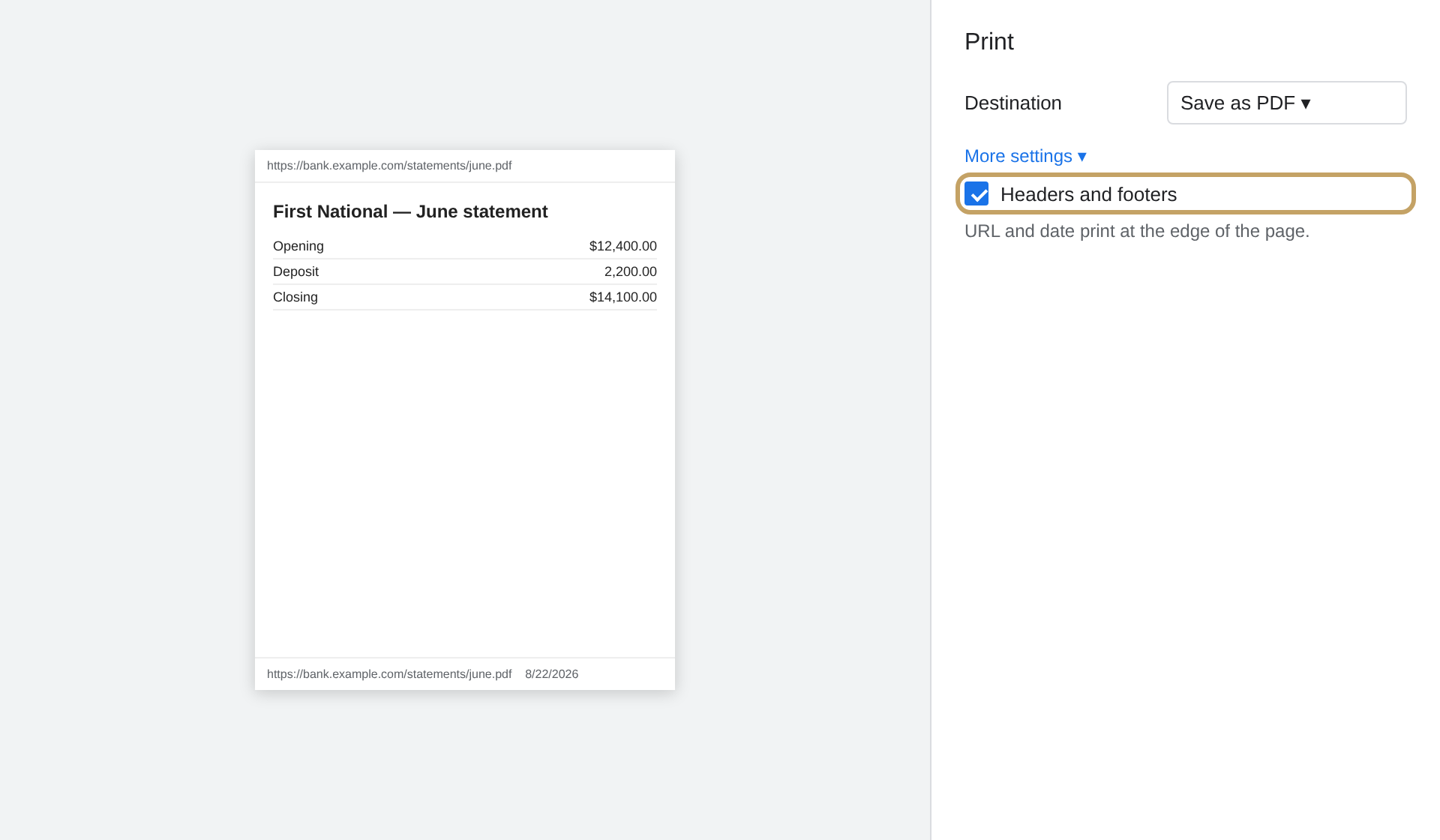
- Open More settings
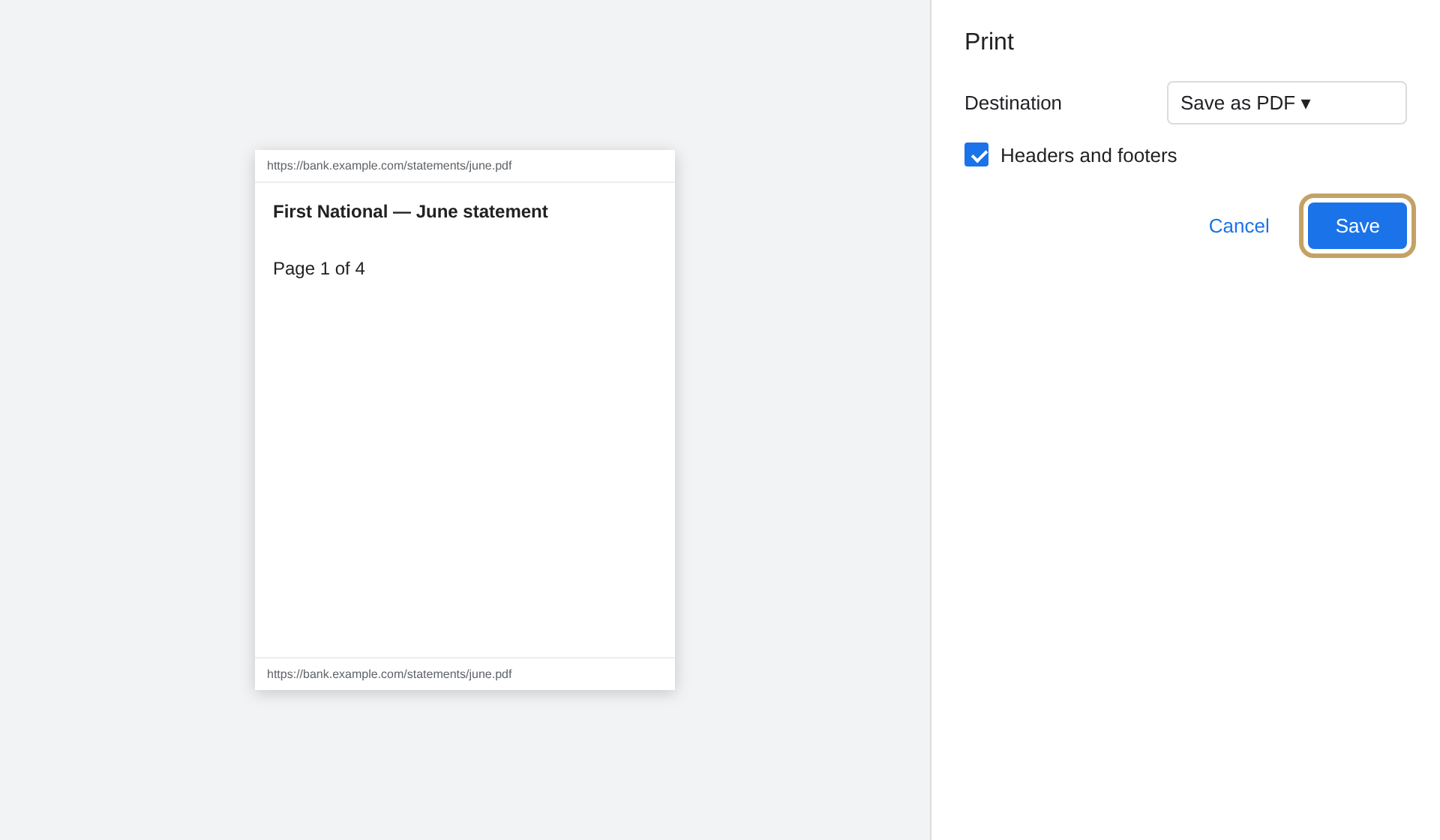
- Turn on Headers and footers so the URL and date print at the edge
- Choose Save as PDF
Safari on a Mac
- File, then Print
- Show details if they are hidden
- Check Print headers and footers
- Save as PDF
Windows (Chrome or Edge)
- Press Ctrl+P
- Open More settings and turn on Headers and footers
- Choose Microsoft Print to PDF or Save as PDF
iPhone (Safari)
- Best: download the bank’s statement PDF, then tap Share (the square with the arrow) and Save to Files or Mail. Do not screenshot.
- If you only have a webpage: tap Share, then Print. Pinch the preview open, tap Share, then Save to Files. iPhone printouts often omit the URL, so the official PDF is safer.
Android (Chrome)
- Open the statement. Tap the three-dot menu. Choose Download if a PDF is offered.
- Or Share, then Print, then Save as PDF. In the print preview, open more options and turn on headers and footers if that setting is there.
Do not crop. Include every page, even the blank one. The statement should show the bank’s name, your name, the account (truncated is fine), and the dates covered. If a gift or a large deposit posted, download that too. Then email us the PDFs.
Once the statements are in, use the cash-to-close calculator to estimate down payment, closing costs, and prepaids so you know what those PDFs need to cover.
What you should see
Same clicks you will make. Gold outline is the control to tap or check.
01
02
03